Select Report Localization
link  on the left
navigation bar on the Report Administration
main page.
on the left
navigation bar on the Report Administration
main page.
Custom Reports can be localized and generated based on a user's locale.
There are two types of Localized Reports:
Dynamic Reports - Report localization is performed immediately when the user requests the report for viewing or printing.
Static Reports - Report localization is performed ahead of time by creating a locale-specific version of the report.
The locale determines the language in which the report is displayed including various font settings for the report. Report metadata, label text and font settings can be uploaded into Rave in the Report Localization pages. A list of all locales in the Rave installation is available in a grid where the user can configure the labels and font settings per locale for the report selected. Custom reports that do not display correctly after translation can also be adjusted in these pages.
Users with Report Localization user group permission can upload report metadata and/or configure report locale settings.
Select Report Localization
link on the left
navigation bar on the Report Administration
main page.
The Report Localization main page will appear.
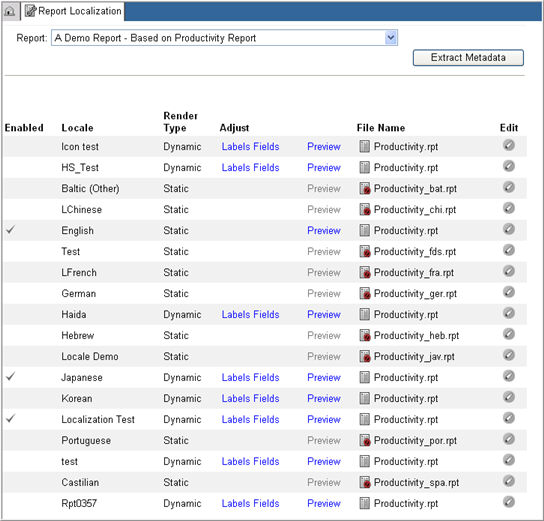
Report Localization page displays the following information:
List of Crystal Reports in the Rave installation
Option to Extract Metadata for the report
Data grid showing:
- whether the report is enabled for rendering in the specified locale
- all Locales in the Rave installation
- report Render Type : Dynamic or Static
- links to the Labels adjustment page and the Fields adjustment page
- link to Preview the report for the locale
- Crystal Report File
Name and its availability. Available files show  next to the file name
and unavailable files show
next to the file name
and unavailable files show  .
.
To specify which report to set locale settings for, select a Report Name from the drop down list of Report names of all Crystal reports in the Rave installation.
Note:
A report name with an asterisk * indicates that the metadata of the report has not been uploaded into Rave.
A report that ends with .rpt is a Crystal Report and the file location property for the report is not empty.
To extract metadata for a report file whose metadata has not been uploaded into Rave, click Extract Metadata button.
The system will refresh and upload the metadata for the report into Rave.
Note: If the report file is updated, the metadata from the report must be uploaded into Rave.
To preview a report, click the Preview link in the data grid. The preview of the report will display in a new window. A report that is not available will not have a Preview link.
Note: The report preview will not be available if the report has no data. In order for the preview to work, save the report with data.
Specify which report to set locale settings for
Upload metadata for the report file into Rave
Edit to enable a report to be available for rendering in a specified locale
Preview the report for the selected locale.

Copyright © 2010 Medidata Solutions, Inc. All rights reserved.