Current access to Rave is based on eLearning requirements in conjunction with instructor-led training. Your access to each of the studies assigned in EDC is available if you pass the assigned eLearning classes for that study. In other words, if you are assigned to eLearning and do not have a valid training date, then access to the Rave Studies will depend entirely on completion of the eLearning courses for specified studies.
You can see the courses assigned to you on the eLearning home page. You can begin using a course from the eLearning page, revisit any of the previously incomplete courses, view status of the course, or print certificate of completion.
Note: For previously incomplete courses, the system will prompt you to return to the last visited page. If you confirm, the system will direct you to the last visited page in the course from where you can continue to complete the course.
This page can be accessed from:
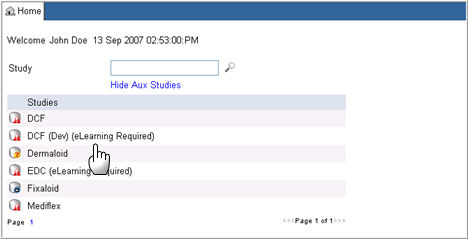
EDC home where a link "eLearning Required" will appear next to a Study name that requires eLearning to be completed.
The My Profiles link on the header of any page.
Click the eLearning Required link next to a Study on the EDC Home page to navigate to the eLearning Home page.
Alternatively, click the My Profile link on the header of any page in the system to see courses assigned to you and their status.
The My Profile page displays the eLearning link in the My Profile section.

Click the eLearning link to navigate to the eLearning home page. The page lists any courses with Completed, Incomplete, or Not Started status.
Note:eLearning courses that are created and assigned to users in iMedidata will not show in Rave. Externally authenticated users must complete all eLearning courses assigned to them in iMedidata.
Note: A short informative message will ONLY appear on top of the eLearning Courses grid if the user has not taken any classes at all.

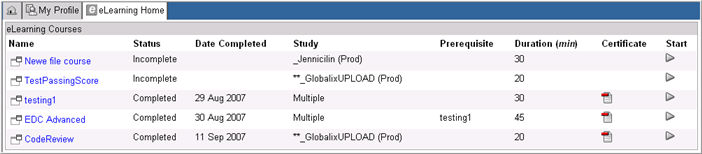
The eLearning home will display the following information in the eLearning grid:
Name
- Name of the eLearning Course. Click the Description
icon  to bring up a description
on the course in a pop-up window.
to bring up a description
on the course in a pop-up window.
Status - Status of the course, whether, Completed, Incomplete, or Not Started
Date Completed - Date of the completed course for Completed status only.
Study - Study assigned for each course.
Note: A course assigned to more than one study will display "Multiple" in the Study column. Click the Multiple link to view the list of Studies.
Prerequisites - A course with prerequisites will be identified here.
Note: If a course is a prerequisite for another course, but is not explicitly assigned to the role of the logged in user, it will be listed as prerequisite for the specific study.
Duration (min) - Duration of the course in minutes.
Certificate
- A certificate icon  link will dynamically generate a certificate of
completion for a course that has a status of Completed.
Click the icon to view and print the certificate.
link will dynamically generate a certificate of
completion for a course that has a status of Completed.
Click the icon to view and print the certificate.
Note: The PDF file for the certificate will automatically complete fields for first and last name of the Rave user, course title, and completion date. The certificate will be available in English and Japanese. All other locales will default to the English version of the PDF file if no template is found for the user's locale.
Select a Course Name
link or click the Start icon
 to begin using the course.
The system will direct you to the eLearning Course launch page where you can begin using the course. See Launch eLearning Course for more information.
Copyright © 2014 Medidata Solutions, Inc. All rights reserved.