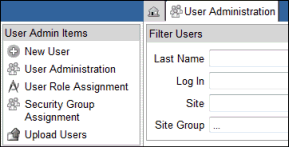
Users can be assigned to and removed from each security group via the User Administration Security Group Assignment page.
Navigate to the User Administration main page from the list of installed modules on the Home page.
Select Security Group Assignment from the list of User Administration Items on the left navigation bar.
The Security Group Assignment main page will display.
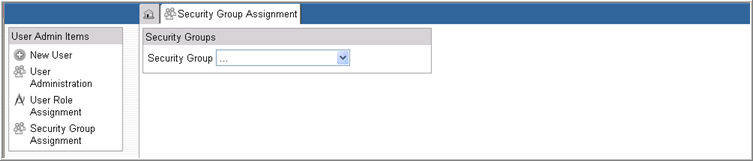
(Required) Select a Security Group from the drop down list of security groups.
The search option will display for the group. This option is only visible if you select a security group.

Click Show All Users Group Users link in the Security Group section to see all users in the selected Security Group. The users display in a grid and include information on the User Name, the login ID, and whether user is included in the selected group. This link is only available if you select a Security Group.
To search for a specific user, select a Security Group from the drop down list in the Security Groups section to which you want add a user.
Enter a Last Name, First Name, or Login ID in the Search Users section. You can also do a wild card search.
Select Internal for Authenticator. Available options are: Internal, iMedidata.
Select Search all users (default option) or Search within selected group.
Click Search
 .
.
The system displays results in a grid based on your search criteria.

Locate your user in the Search Results grid and check box to Include in Selected Group.
Note: Assignments in Rave are Read Only for iMedidata users and are configured in iMedidata. Include in Selected Group is disabled for iMedidata users.
Click Update
 .
.
To remove the user from the security group, deselect the user and click Update.

Copyright © 2014 Medidata Solutions, Inc. All rights reserved.