
You can associate a site with a study once the site has been added.
Click Add Study link in the Study Sites section. The study selection window displays.
Select a Study and an Environment (live or auxiliary) from the dropdown lists.
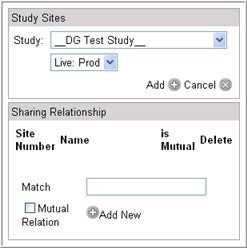
Click Add to save your changes. The Study Site section will display the study associated with the site.
Note: If you add a live and an auxiliary environment to the same site, they cannot be applied at the same time. You have to add each environment separately.
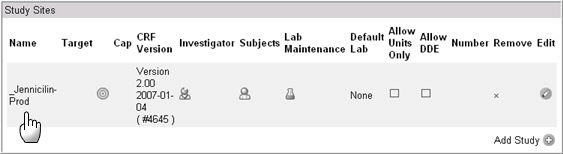
The Study Site window enables the user to add (or assign) and/or delete sites to and from studies. This window displays the following functionality.
FIELDS |
DEFINITION |
Name |
Name of the Study |
Target |
Displays
the target for enrollment of the site. The Planned Enrollment
icon |
Cap |
Displays the maximum number of subjects added to this particular site for a study. Note: Once a site has reached the enrollment cap, the site will no longer be able to add additional subjects. |
CRF Version |
Displays the latest version of the study applied to the EDC module. Note: The CRF version is associated with the Site in the Architect module. This field is informational only and cannot be edited. |
Investigator |
Enables assignment, reassignment, or removal of investigators associated with this site. |
Subjects |
This icon enables the user to activate or inactivate subjects to sites and reassign subjects to different sites. |
Lab Maintenance |
Enables a user to create local labs from the Site Administration module. |
Default Lab |
Displays a drop down list of default labs. The default labs are:
|
Allow Units Only |
When you select "Units Only" lab as the default lab, you must also check the "Allow Units Only". The Units Only lab allows only unit values on the lab eCRF. Note: This option allows a default of "local lab" or "central lab" to be selected with or without the existence of a "Units Only" lab in the labs drop down list on a lab eCRF. |
Allow DDE |
This check box enables a user to set the site as a Double Data Entry (DDE) site. Note: If the site is checked a DDE site, the form will be available in EDC only after it has gone through the DDE process. |
Number |
Displays the Study Site Number for the site in the study. Assignment of this number to the site is optional. |
Remove |
Click X to remove the study site. Note: A study site created in iMedidata cannot be removed in Rave Site Administration. The study site can only be removed in iMedidata Site Administration. |
Edit |
Click the edit icon to enter and edit target and Cap fields. |

Copyright © 2014 Medidata Solutions, Inc. All rights reserved.
 will appear to the right
of any user entered data. This icon links to a new panel
where users can set individual targets for set time periods, on
a per study site basis.
will appear to the right
of any user entered data. This icon links to a new panel
where users can set individual targets for set time periods, on
a per study site basis.