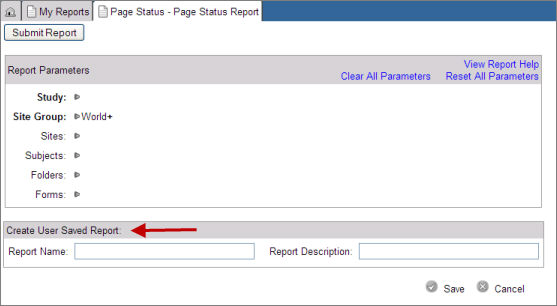
When accessing a Standard or Custom report, you can create a user saved variation of the report by entering a report name and a description to identify the report for later use. This ensures your report parameters are saved and you do not have to specify them again every time you run a report for the same parameters.
(Optional) Click Show Aux Studies link on the left navigation bar to include auxiliary studies in the Study parameter list.
On the Report Parameters page, select parameters in the Report Parameters section, starting with Study.
On the Create User Saved Report box enter a report name in the Report Name text box. This name must be unique. The system displays an error for duplicate names.
Enter a report description in the Report Description text box.
Click Save  to save your parameters or click Cancel
  to refresh the page without saving the changes.
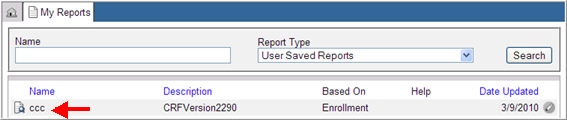
The system saves the report parameters and routes the user back to the My Reports page. The report appears on the My Reports list as a user saved report and this is indicated by the  icon.
icon.
Filter and select a User Saved Report that you want to update from the list of reports on the My Reports page.
The Report Parameters page for the user saved report displays the report name and description previously defined.
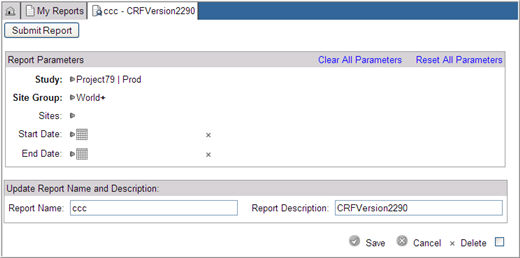
Click Clear All Parameters link in the Report Parameters section to clear any previously defined parameters.
Or make new selections on the Report Parameters section.
Enter a new report name and description in the Report Name and Report Description text fields in the Update Report Name and Description section. The report name must be unique.
Click Save to save your parameters. Selecting Cancel causes the page to refresh without saving the changes.
The system verifies for correct information and saves any changes that have been made. The user is routed back to the My Reports page where the newly saved report displays.
Filter and select a User Saved Report that you want to delete from the list of reports on the My Reports page.
The Report Parameters page for the user saved report displays the report name and description previously defined.
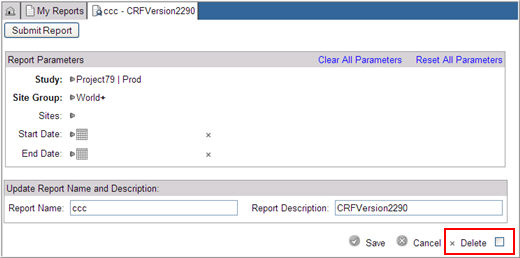
Check box Delete and click X.
The system deletes the user saved report and routes the user back to the My Reports page where the report no longer displays.
Copyright © 2013 Medidata Solutions, Inc. All rights reserved.